How to import ServiceTitan customers into Deepsel
- ServiceTitan is sold by demo only, so I don't have an account to export from. The export steps come from ServiceTitan's help center, read on September 28, 2026.
- The file in the screenshots is one I built from the column list on ServiceTitan's Customer List report page, with made-up customers. If your export comes out different, email it to tim@usedeepsel.com and I'll fix the importer.
- Deepsel is my own product.
To import ServiceTitan customers into Deepsel, run the built-in Customer List report in ServiceTitan and export it to XLSX, then upload that file in Deepsel under Customers, Import. Deepsel reads the Excel file as it is and already knows the report's column names. It splits the one name column into first and last name, files commercial customers under their company name, and breaks the one-cell address into street, city, state and zip. You check the matches, look at how many rows are new and how many are already in your account, and click Import.
Below is every step, with screenshots, using a 41-row report from a made-up Atlanta shop that already had 14 of its customers in Deepsel. The run added 26 customers, updated 6 and skipped 9 rows as duplicates.
14-day free trial. No credit card required.What comes across from ServiceTitan, and what stays behind
The import fills ten fields on a customer: first name, last name, company name, email, phone, street address, city, state, zip and notes. Here's which column of the ServiceTitan file feeds each one.
| Column in the file | Lands in Deepsel as | Good to know |
|---|---|---|
| Customer Name | First name and Last name, or Company name | The Type column decides. A Residential name is split into first and last, a Commercial name becomes the company name |
| Type | Not stored | Residential or Commercial, used for the name above |
| Phone Number | Phone | All of a customer's numbers share one cell, the first one is kept |
| Same here: every address in one cell,1 the first one is kept | ||
| Full Address | Street address, City, State, Zip | This is the billing address.2 Deepsel splits it and drops the USA at the end |
| Customer ID | Not stored | Used to spot one record listed twice |
| Do Not Mail, Do Not Service, Customer Tags, Last Job Completed, Lifetime Revenue, Lifetime Jobs Completed, Lifetime Invoices | Not imported | These are the yellow rows in the review |
Three things never make it into this report, so they can't come across: customer notes, a contact person for commercial customers, and service locations.
Step 1: Export your customers from ServiceTitan
- In ServiceTitan, click Reports in the navigation bar and open the Customer List report. Typing a few letters of the name in the search field finds it.
- Set the From - To date range. ServiceTitan's help page doesn't say what the dates filter on this report, so I'd set the range wide.
- Leave Business Unit alone, the report runs for all of them by default.2
- The report shows active customers. Tick Show Inactive Customers only if you want the inactive ones in Deepsel too.2
- Click Run Report.
- Click Export, then Export to XLSX.3 The file downloads to your computer.
The other export choice is PDF, which Deepsel can't read. XLSX works as it is, you don't convert anything.
Step 2: Open Customers in Deepsel and click Import
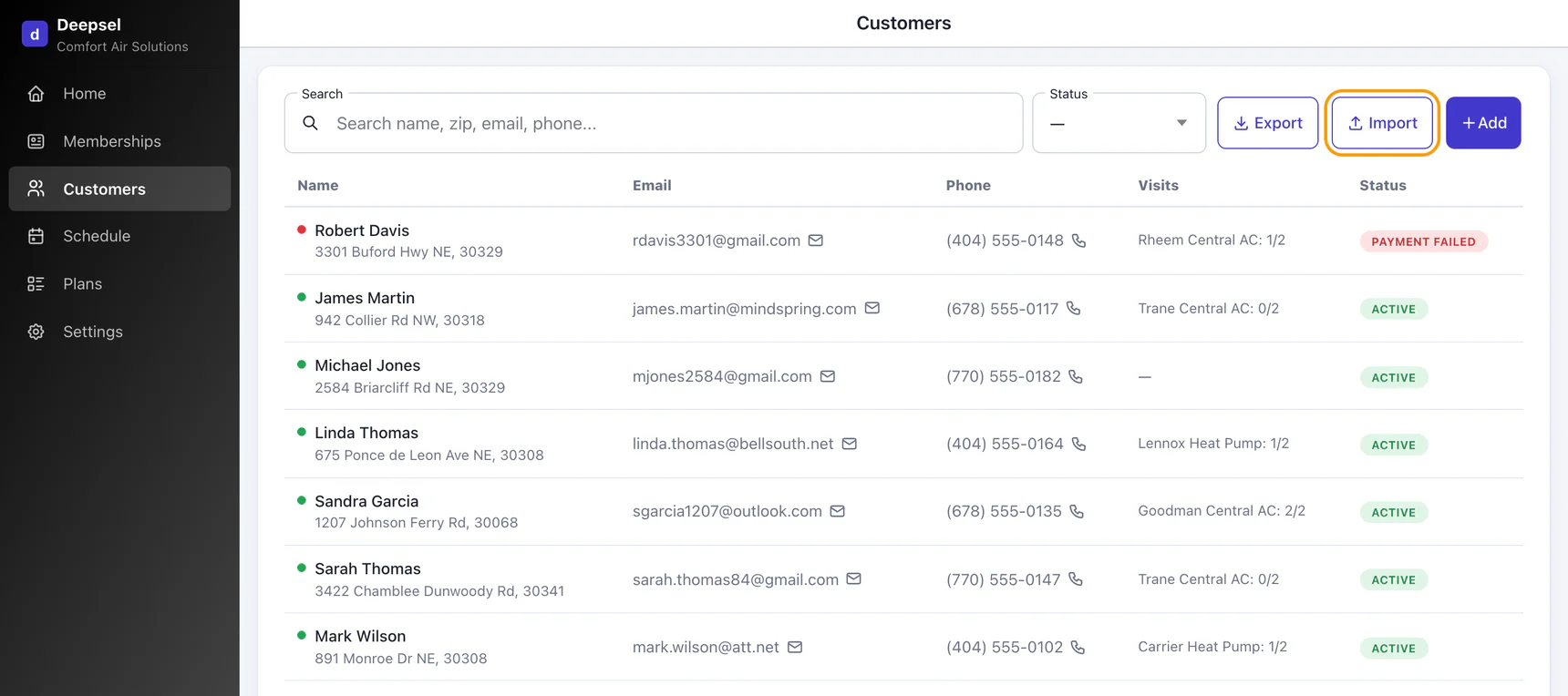
Sign in to Deepsel as the account owner, the Import button only shows for the owner. Open Customers from the side menu and click Import, between Export and Add.
Step 3: Pick ServiceTitan as the source
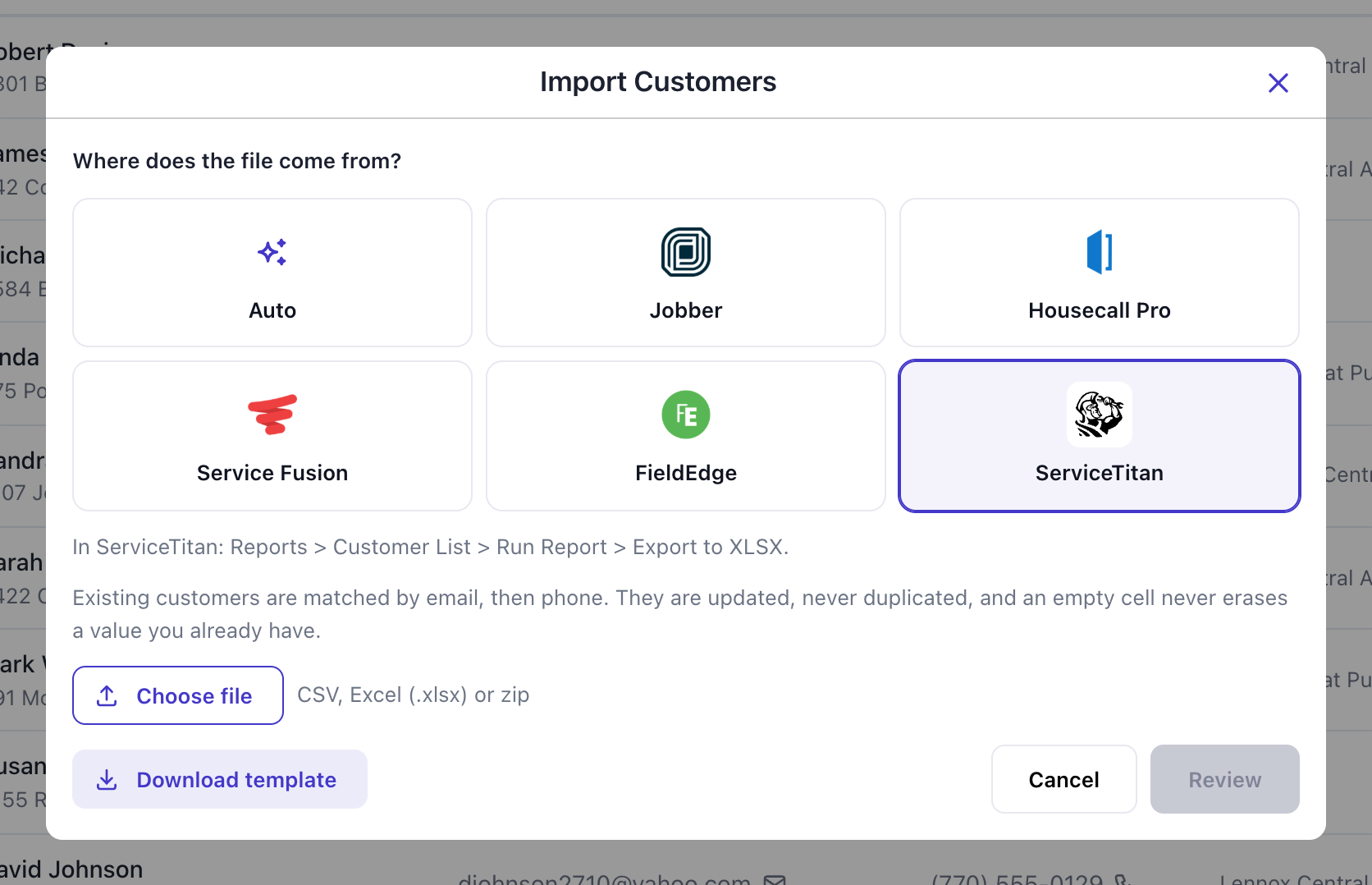
The window opens with Auto selected. Auto reads the column names and works out where the file came from, so it would get a ServiceTitan file right as well. I click ServiceTitan anyway: the line under the buttons then says where the export lives in ServiceTitan, handy if you haven't run it yet.
Step 4: Choose the file
Click Choose file and pick the .xlsx that ServiceTitan downloaded. The file name shows up next to the button and Review turns on. Deepsel takes CSV, Excel (.xlsx) and zip files up to 20 MB.
Step 5: Review the column matches
Click Review. Deepsel reads the file and shows what it plans to do with it. Nothing is saved at this point, the review is a dry run.
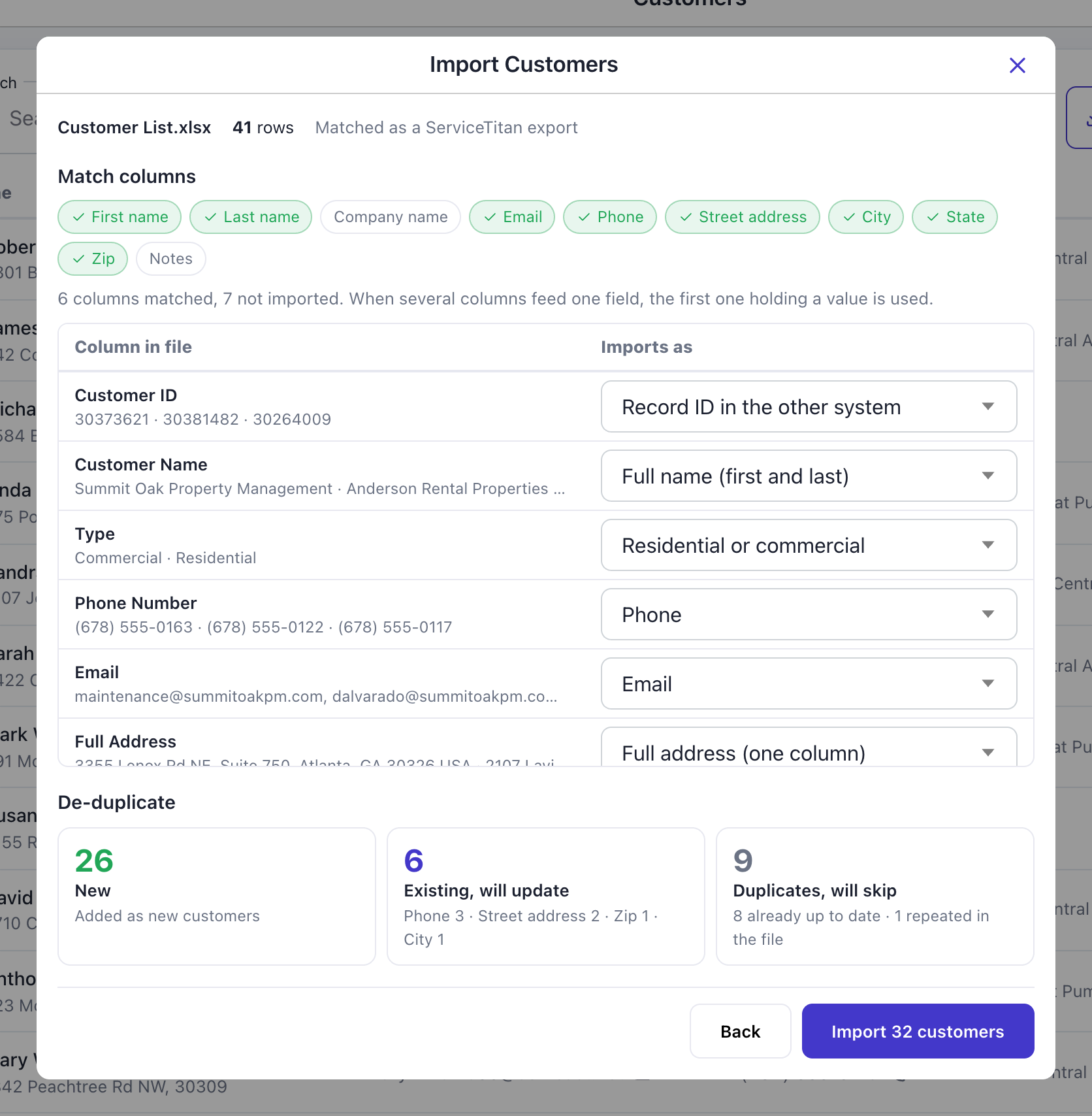
The top line has the file name, the row count and "Matched as a ServiceTitan export". Under it are the ten customer fields as chips, green when a column in the file feeds that field. Two chips are grey here. Notes, because the report has no notes. And Company name, because the report has one name column and no separate company column. Companies still come across: Deepsel reads the Type column and files the name on a Commercial row as the company name.
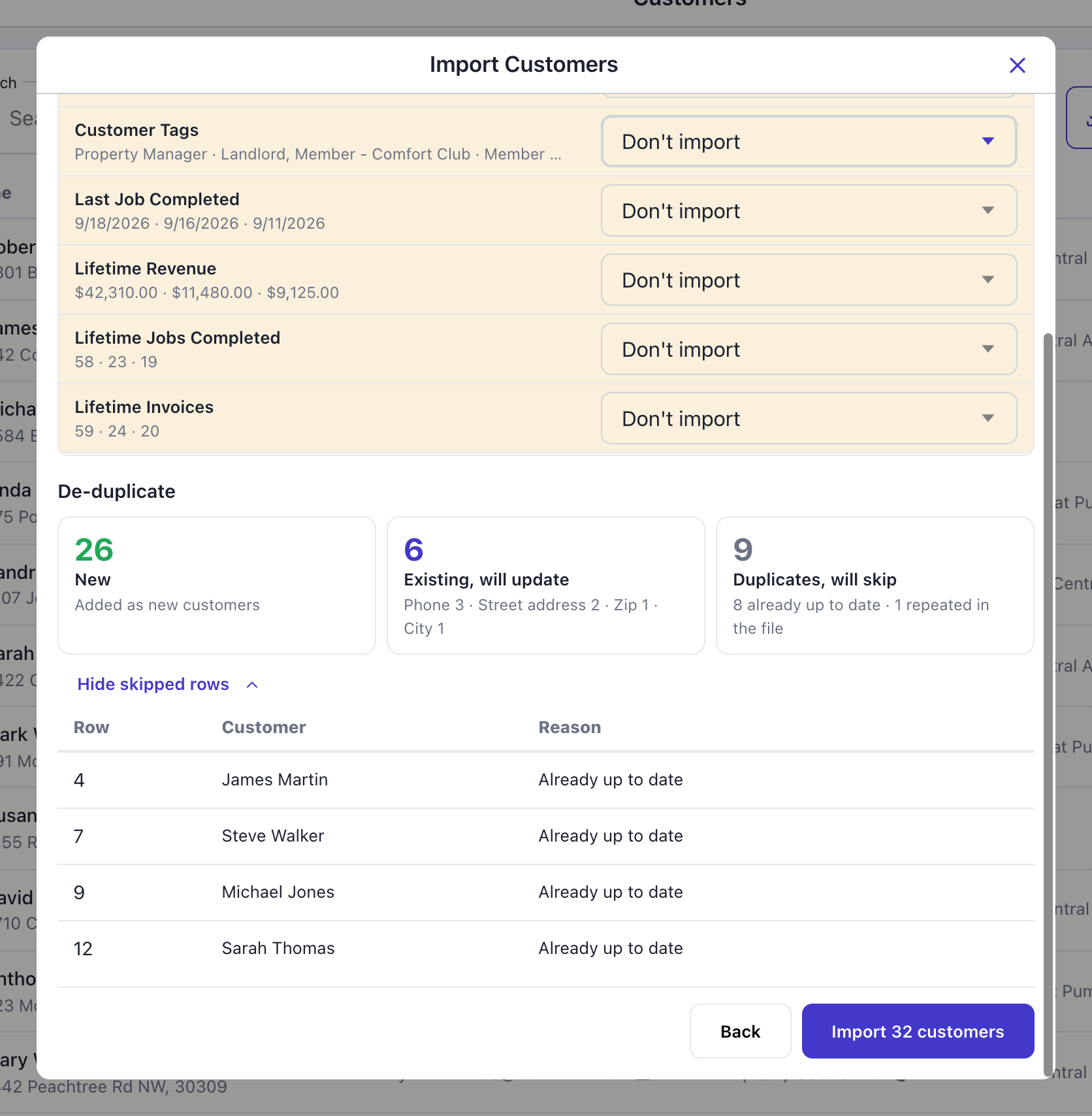
The table lists every column in your file with a few real values from it, and on the right what it imports as. White rows get imported. Yellow rows are left out. In my file 6 columns are matched and 7 are left out. The 7 are the two do-not flags, the tags and the lifetime numbers, which Deepsel has no customer field for.
Step 6: Change a match if you need to
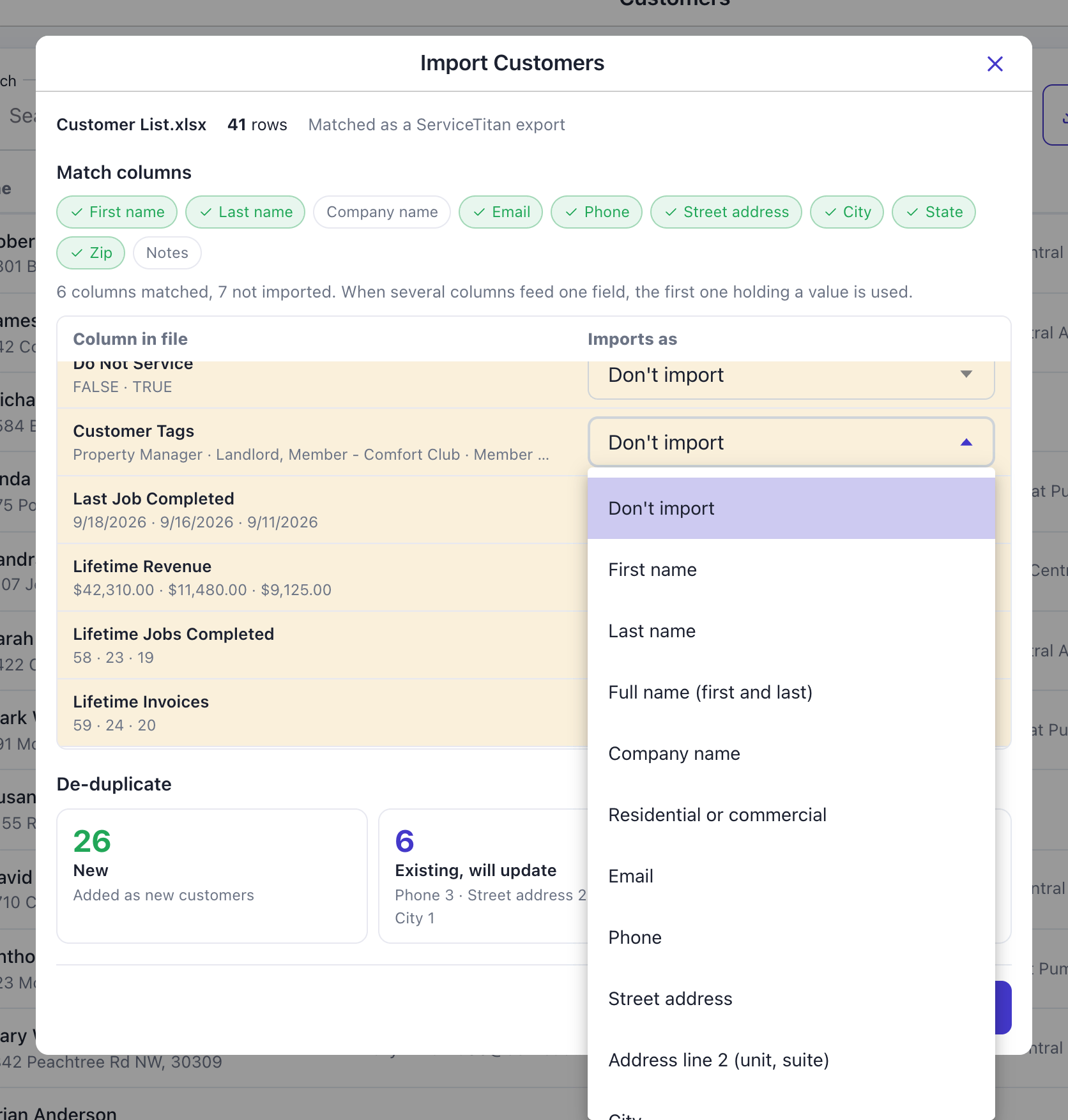
Every dropdown can be changed. Open one, pick a field, and the counts at the bottom are worked out again. Pick Don't import to leave a column out.
In the screenshot I opened the dropdown on Customer Tags and left it on Don't import. Deepsel has no tag field on a customer. If you depend on tags, Notes is the one free-text field, and nothing else in this report feeds it.
Two checks run while you do this. A customer needs a name or an address, so if no column feeds either one the chip turns red and the Import button stays off. And if no column feeds email or phone you get an amber warning: Deepsel then has no way to recognize the customers you already have, and every row would be added as new.
Step 7: Check the de-duplicate counts
Under the table is De-duplicate, with three numbers.
- New is the rows that match nobody in your account. 26 in my file.
- Existing, will update is the rows that match a customer you already have and carry something different. 6 in my file, and the line under the number says what changes: Phone 3, Street address 2, Zip 1, City 1.
- Duplicates, will skip is the rows that would change nothing, plus the rows that repeat a customer from higher up in the same file. 9 in my file: 8 already up to date, 1 repeated in the file.
Matching goes by email first, then phone. An empty cell in the file never erases a value you already have in Deepsel.
The report has one row per customer. My one repeated row was a customer somebody had entered twice with the same phone number, it's skipped with the reason "Same customer as row 16". When a cell holds several phone numbers or emails, Deepsel matches on the first one.
Click Show skipped rows to see each skipped row with its row number in the file and the reason.
Step 8: Click Import
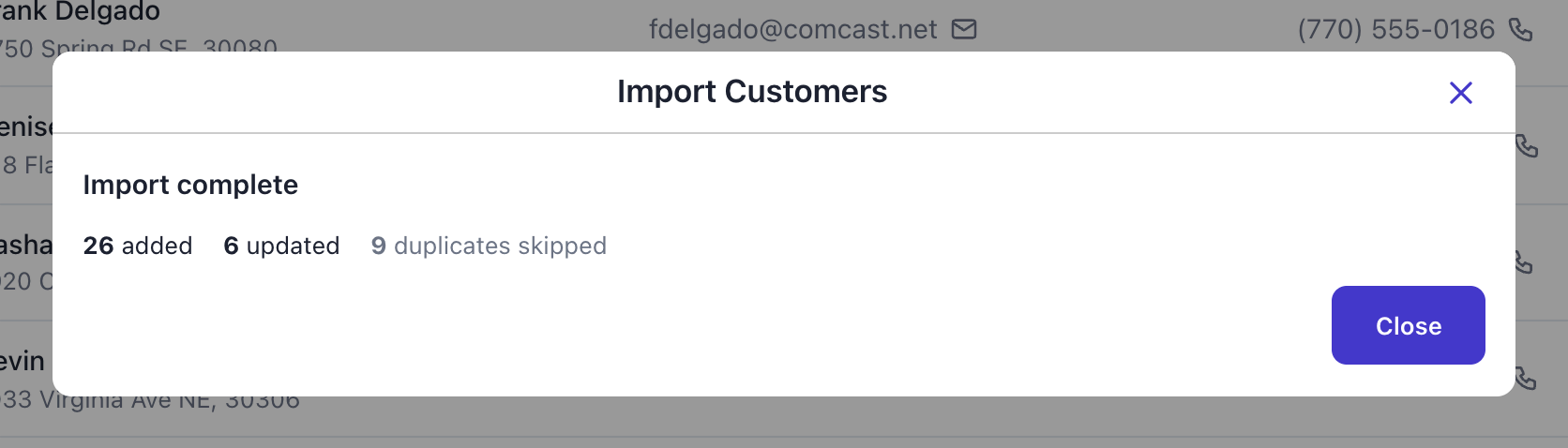
The button says how many customers it's about to write, new plus updated: Import 32 customers. Click it. The result repeats the numbers from the review: 26 added, 6 updated, 9 duplicates skipped.
Step 9: Check the result
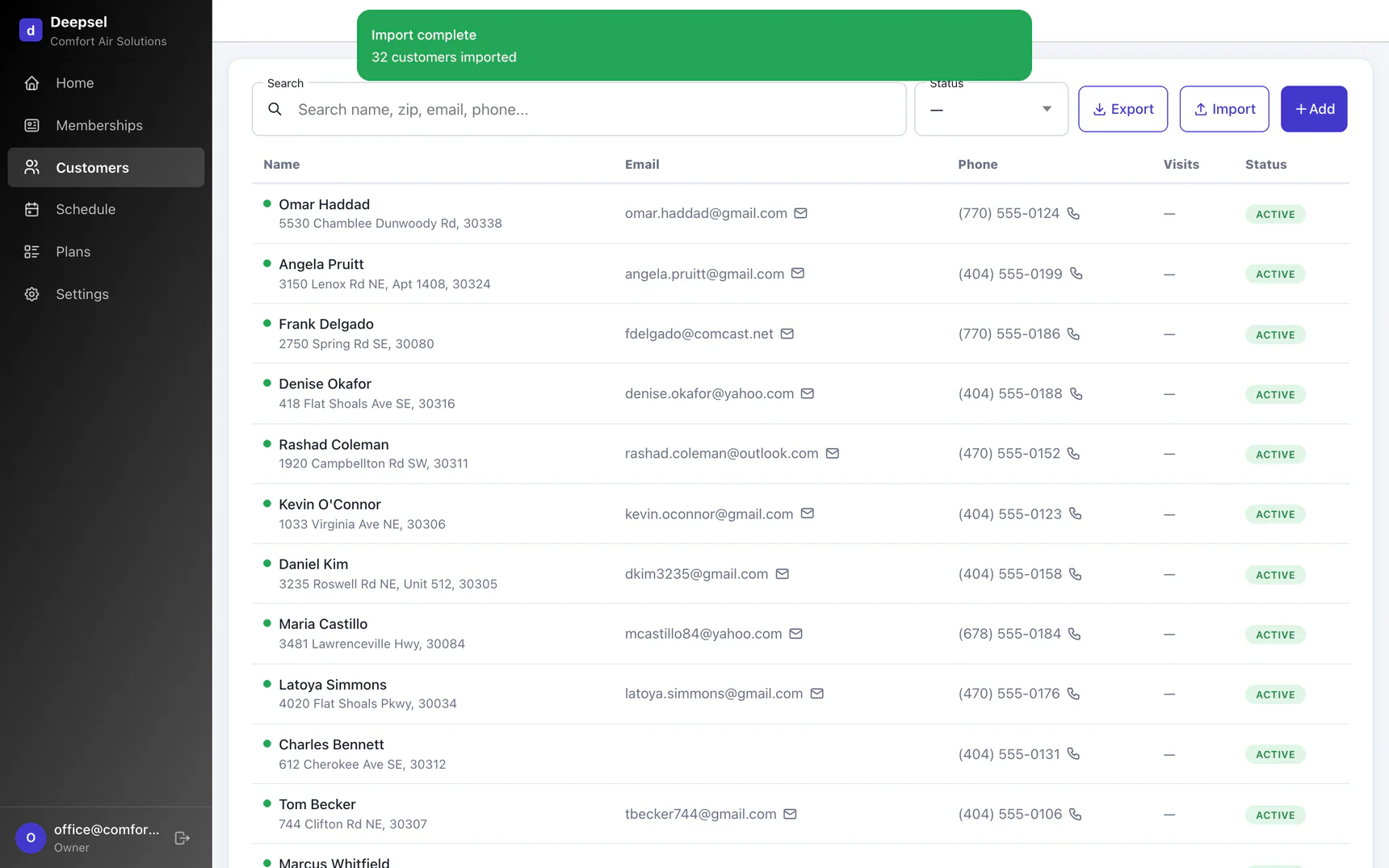
Click Close. The list reloads with the newest customers on top and a green confirmation.
Open one to check it. I opened Piedmont Ridge Dental. It's listed under the company name, the report has no contact person for a commercial customer. The suite number sits inside ServiceTitan's address cell and stays on the street line.
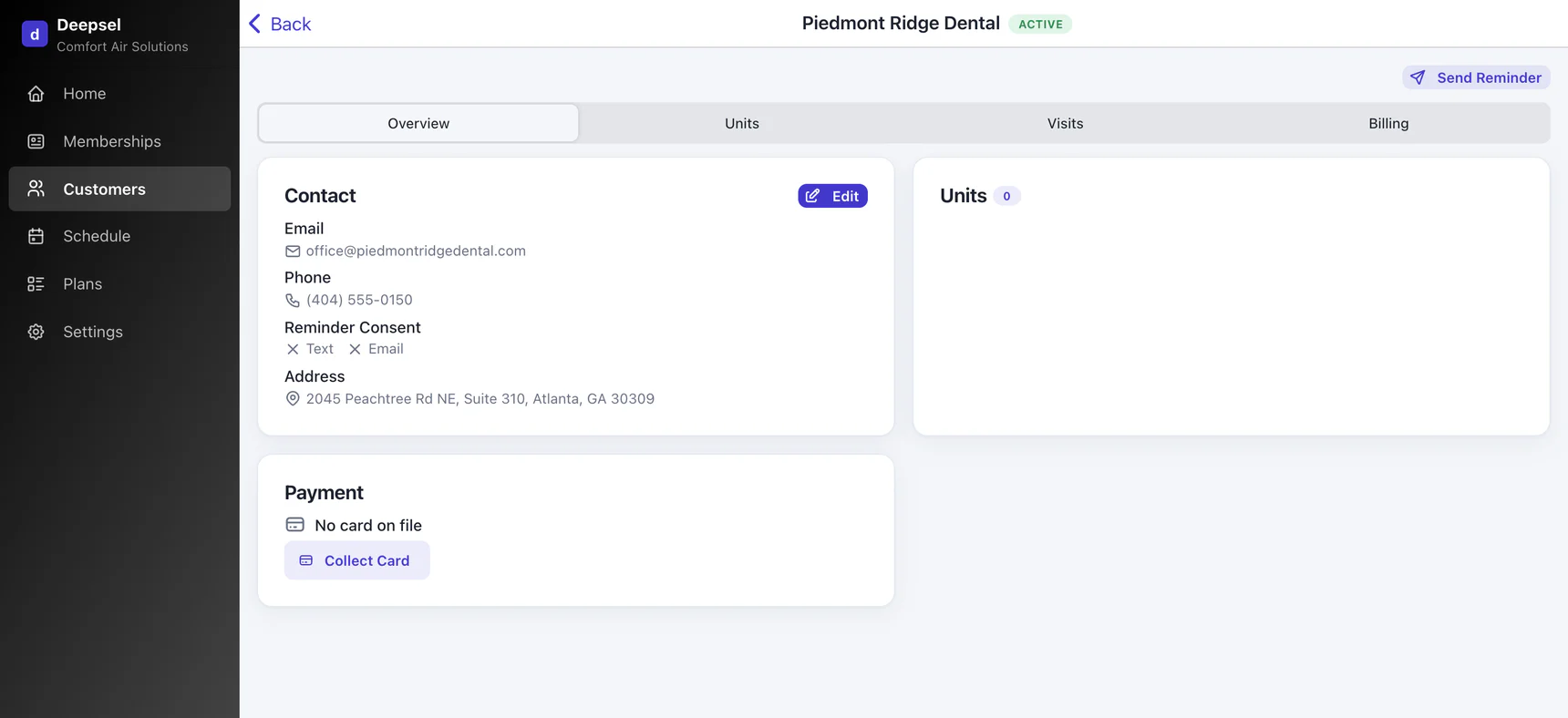
Every imported customer comes in as Active, with no units and no membership, and with reminder consent switched off for text and email.
After the import
The import brings over who your customers are. The agreements are the next job: for each member add the equipment, attach the plan, and put a card on file if that's how you bill. ServiceTitan memberships, explained covers how the membership module works and where its limits are.
Run the import again whenever the list in ServiceTitan has moved on. Customers already in Deepsel are matched and either updated or skipped, the new ones are added.
Frequently asked questions
Will importing the same file twice create duplicates?
No. I ran one of these files a second time right after importing it and got 0 added and 0 updated, every row was skipped as already up to date. Rows are matched to the customers you have by email first, then by phone.
Why is the Company name chip grey?
The report has one name column, so no column is matched to Company name directly. Deepsel reads the Type column instead: on a Commercial row the name becomes the company name, on a Residential row it's split into first and last name.
A customer has two emails or two phones in ServiceTitan. Which one is kept?
The first one in the cell. ServiceTitan puts all of a customer's emails in one cell and Deepsel keeps one email and one phone per customer.
Do service locations come across?
No. The Customer List report has one row per customer with the billing address, and that's the address Deepsel stores. If the unit sits at a different address, change it on the customer after the import.
Do inactive customers come across?
Only if you tick Show Inactive Customers before you run the report. They then come in as ordinary active customers, the report has no column that marks them.
My export doesn't look like your screenshots. What do I do?
Upload it anyway. If the layout isn't recognized, Deepsel matches columns by their names and you can set the rest by hand in the review. Then email me the file at tim@usedeepsel.com, I built this layout from ServiceTitan's documentation and a real export is what I need to get it exact.
Sources
- ServiceTitan help center, "How can I efficiently separate customer emails exported from ServiceTitan into Excel cells?" (updated July 11, 2026) - "When exporting reports to Excel from ServiceTitan, all customer emails for an account are placed in the same cell." help.servicetitan.com, retrieved September 28, 2026.
- ServiceTitan help center, "Customer List report" (updated March 27, 2026) - "Full Address: Billing address of the customer"; "By default, the report runs for all BUs"; "By default, the report displays all active customers"; "To include inactive customers, select Show Inactive Customers." help.servicetitan.com, retrieved September 28, 2026.
- ServiceTitan help center, "Run, filter, and export reports" (updated May 18, 2026) - "click the Export dropdown and select Export to PDF or Export to XLSX." help.servicetitan.com, retrieved September 28, 2026.