How to import Service Fusion customers into Deepsel
- Service Fusion has no free trial, so I don't have an account to export from. The export steps come from Service Fusion's help center, read on September 28, 2026.
- The file in the screenshots is one I built from the column list in Service Fusion's report guide, with made-up customers. If your export comes out different, email it to tim@usedeepsel.com and I'll fix the importer.
- Deepsel is my own product.
To import Service Fusion customers into Deepsel, run the Customer List report in Service Fusion with every column selected and Excel as the report type, then upload that file in Deepsel under Customers, Import. Deepsel reads the Excel file as it is and already knows the report's column names, so names, phones, emails and service addresses get matched for you. You check the matches, look at how many rows are new and how many are already in your account, and click Import.
Below is every step, with screenshots, using a 41-row report from a made-up Atlanta shop that already had 14 of its customers in Deepsel. The run added 26 customers, updated 6 and skipped 9 rows as duplicates.
14-day free trial. No credit card required.What comes across from Service Fusion, and what stays behind
The import fills ten fields on a customer: first name, last name, company name, email, phone, street address, city, state, zip and notes. Here's which column of the Service Fusion file feeds each one.
| Column in the file | Lands in Deepsel as | Good to know |
|---|---|---|
| Customer Name | Company name | Left empty when it's the same as the contact's name, which is how a homeowner looks in this report |
| Primary Contact First Name, Primary Contact Last Name | First name, Last name | |
| Primary Contact Phone 1 | Phone | |
| Primary Contact Email 1 | ||
| Primary Service Location Address 1 and 2, City, State/Province, Zip/Postal Code | Street address, City, State, Zip | Address 2 is joined onto the street line: 2045 Peachtree Rd NE, Suite 310 |
| Account Number | Not stored | Used to spot one record listed twice |
| Your custom fields | Not imported, unless you match one by hand | Service Fusion adds one column per customer custom field after Date Created1 |
| Parent Account Name, Is VIP, Is Active, the contact's job title, department, birthday and anniversary, Primary Service Location Name, Tags, Assigned Contract, Is Taxable, Tax Item Name, Business Number, Source, Industry, Assigned Agent, Date Created | Not imported | These are the yellow rows in the review |
Going by Service Fusion's report guide, four things never make it into this report, so they can't come across: customer notes (internal and public), a contact's second phone and email, alternate contacts, and every service location after the primary one.2
Step 1: Export your customers from Service Fusion
- In Service Fusion, go to Reports, then Reports Dashboard.
- Scroll to List Reports at the bottom left. Under Customer List, click Custom.3
- Leave the Customers Created Between dates empty, so nobody is filtered out by date.
- Decide on Include Inactive Customers. With it ticked, inactive customers are in the file and Deepsel brings them in as ordinary customers.
- Click the first entry under Available Options (Account Number), then click the >> button to move every column over to Selected Options. Service Fusion wants at least three columns selected.3
- Set Report Type to Excel and click Generate Report. The file downloads to your computer.
The report type is either HTML or Excel, Service Fusion has no CSV option. That's fine, Deepsel reads the .xlsx directly and you don't convert anything.
Step 2: Open Customers in Deepsel and click Import
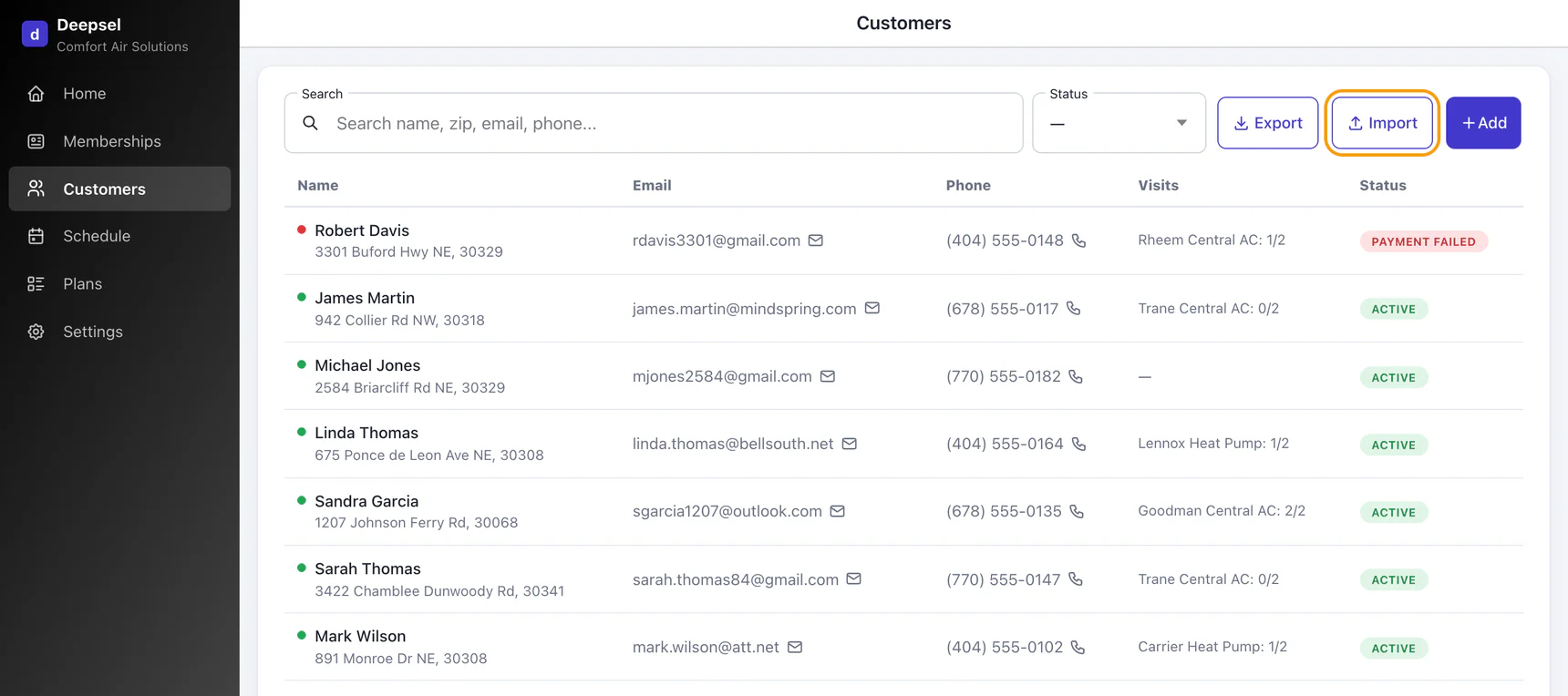
Sign in to Deepsel as the account owner, the Import button only shows for the owner. Open Customers from the side menu and click Import, between Export and Add.
Step 3: Pick Service Fusion as the source
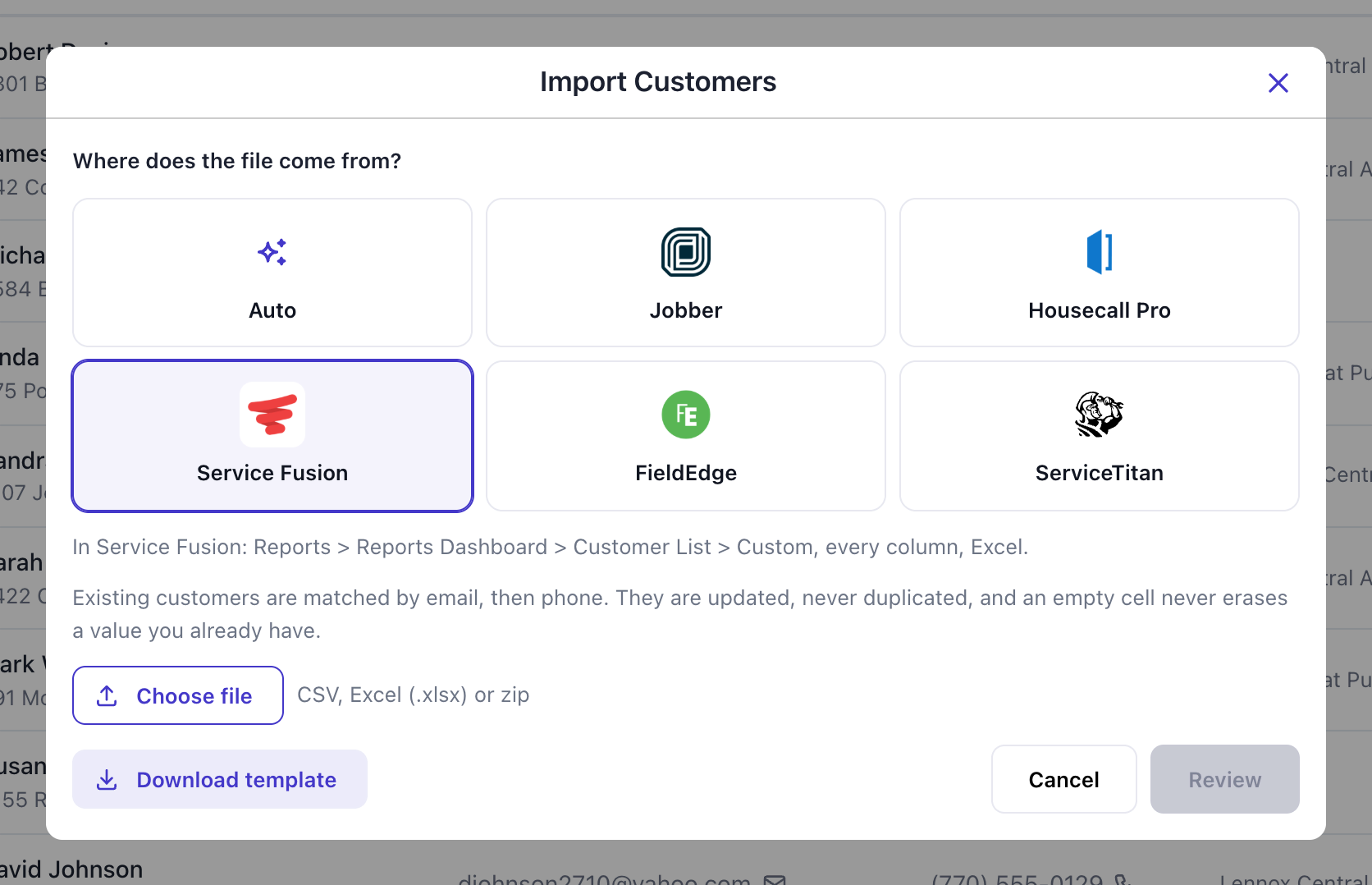
The window opens with Auto selected. Auto reads the column names and works out where the file came from, so it would get a Service Fusion file right as well. I click Service Fusion anyway: the line under the buttons then says where the export lives in Service Fusion, handy if you haven't run it yet.
Step 4: Choose the file
Click Choose file and pick the .xlsx that Service Fusion downloaded. The file name shows up next to the button and Review turns on. Deepsel takes CSV, Excel (.xlsx) and zip files up to 20 MB.
Step 5: Review the column matches
Click Review. Deepsel reads the file and shows what it plans to do with it. Nothing is saved at this point, the review is a dry run.
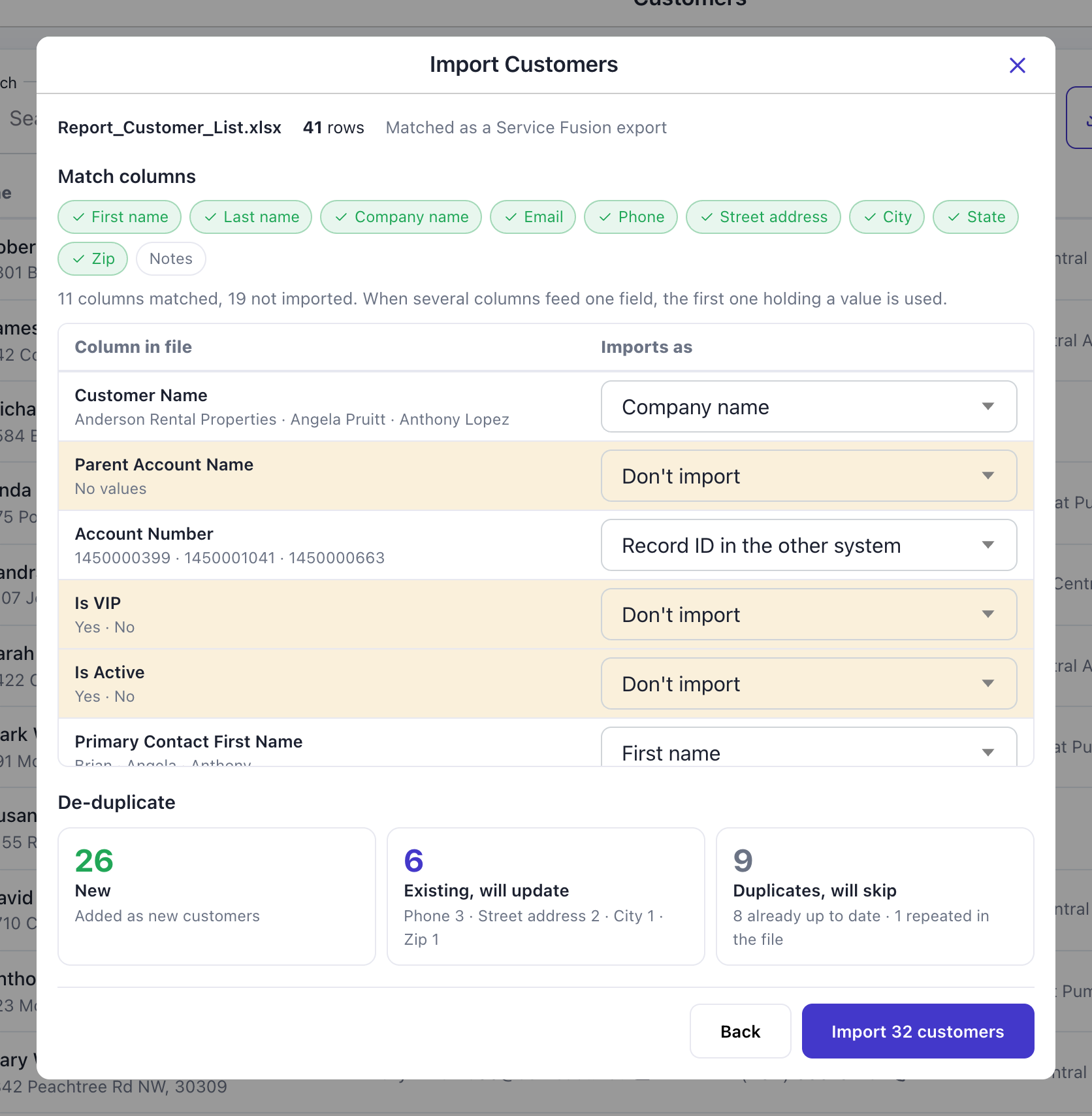
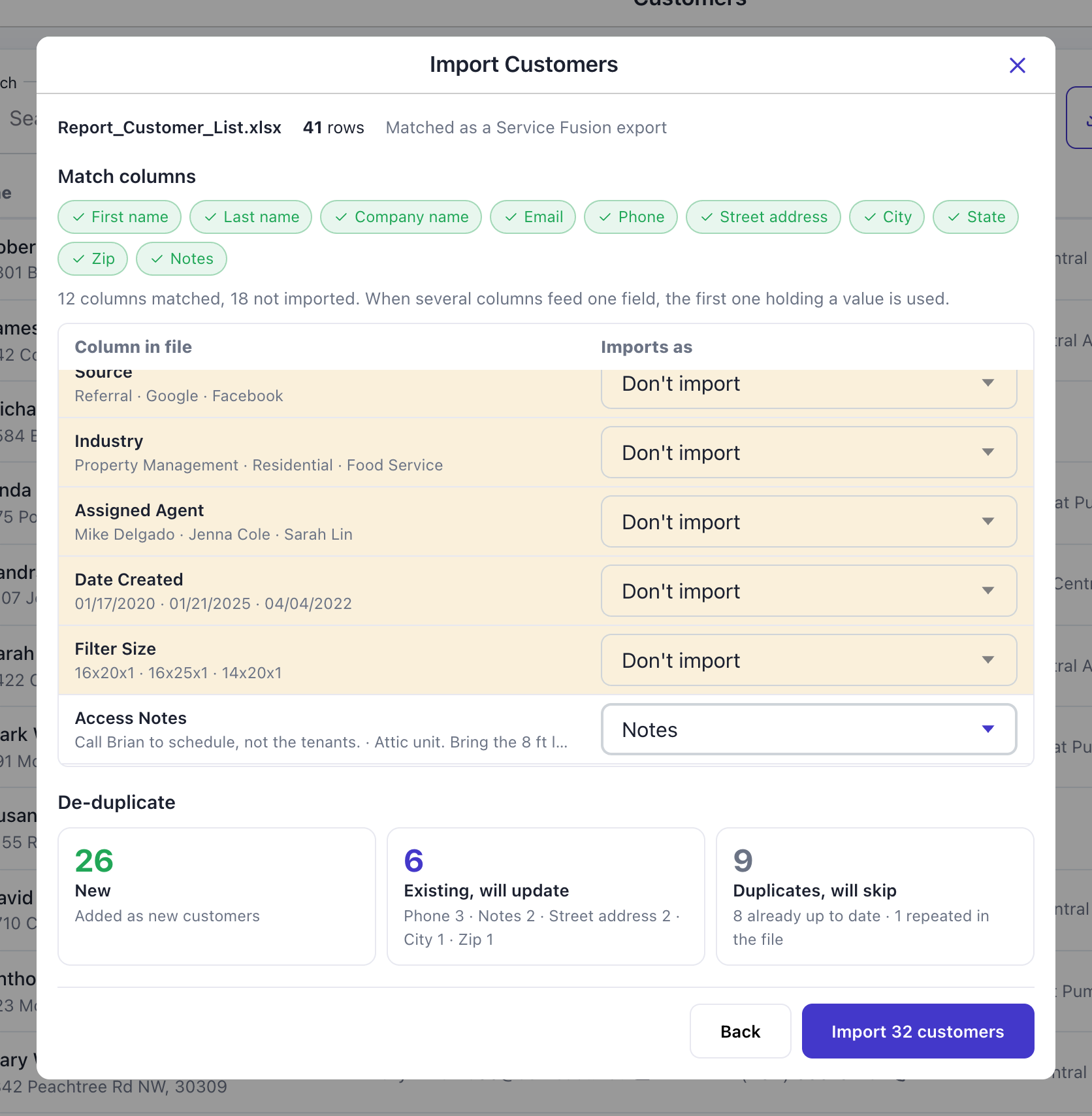
The top line has the file name, the row count and "Matched as a Service Fusion export". Under it are the ten customer fields as chips, green when a column in the file feeds that field. Nine of the ten are green here. Notes stays grey because the report has no notes column, step 6 fixes that.
The table lists every column in your file with a few real values from it, and on the right what it imports as. White rows get imported. Yellow rows are left out. In my file 11 columns are matched and 19 are left out. The 19 are things Deepsel has no customer field for (tags, the assigned contract, tax settings, the agent) plus this shop's two custom fields, Filter Size and Access Notes.
Step 6: Change a match if you need to
Every dropdown can be changed. Open one, pick a field, and the counts at the bottom are worked out again. Pick Don't import to leave a column out.
This shop kept gate codes and ladder reminders in a custom field called Access Notes. Custom fields arrive as extra columns at the end of the file, and Deepsel can't know what yours mean, so they start on Don't import. I opened the dropdown on Access Notes and picked Notes.
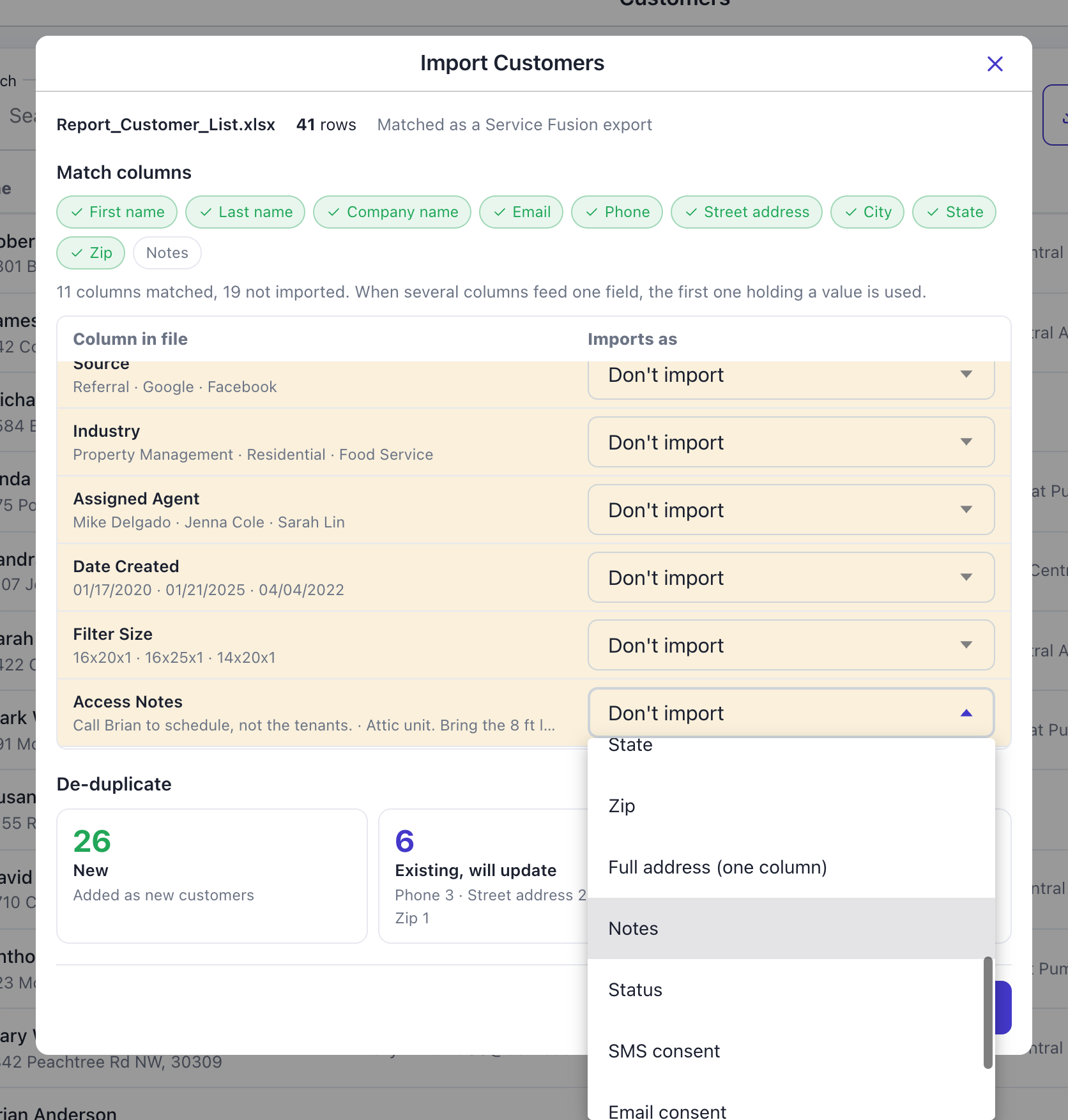
The row turns white, the Notes chip goes green and the matched count goes from 11 to 12. The update line now includes Notes 2: two customers already in Deepsel get a note they didn't have.
Two checks run while you do this. A customer needs a name or an address, so if no column feeds either one the chip turns red and the Import button stays off. And if no column feeds email or phone you get an amber warning: Deepsel then has no way to recognize the customers you already have, and every row would be added as new.
Step 7: Check the de-duplicate counts
Under the table is De-duplicate, with three numbers.
- New is the rows that match nobody in your account. 26 in my file.
- Existing, will update is the rows that match a customer you already have and carry something different. 6 in my file, and the line under the number says what changes: Phone 3, Notes 2, Street address 2, City 1, Zip 1.
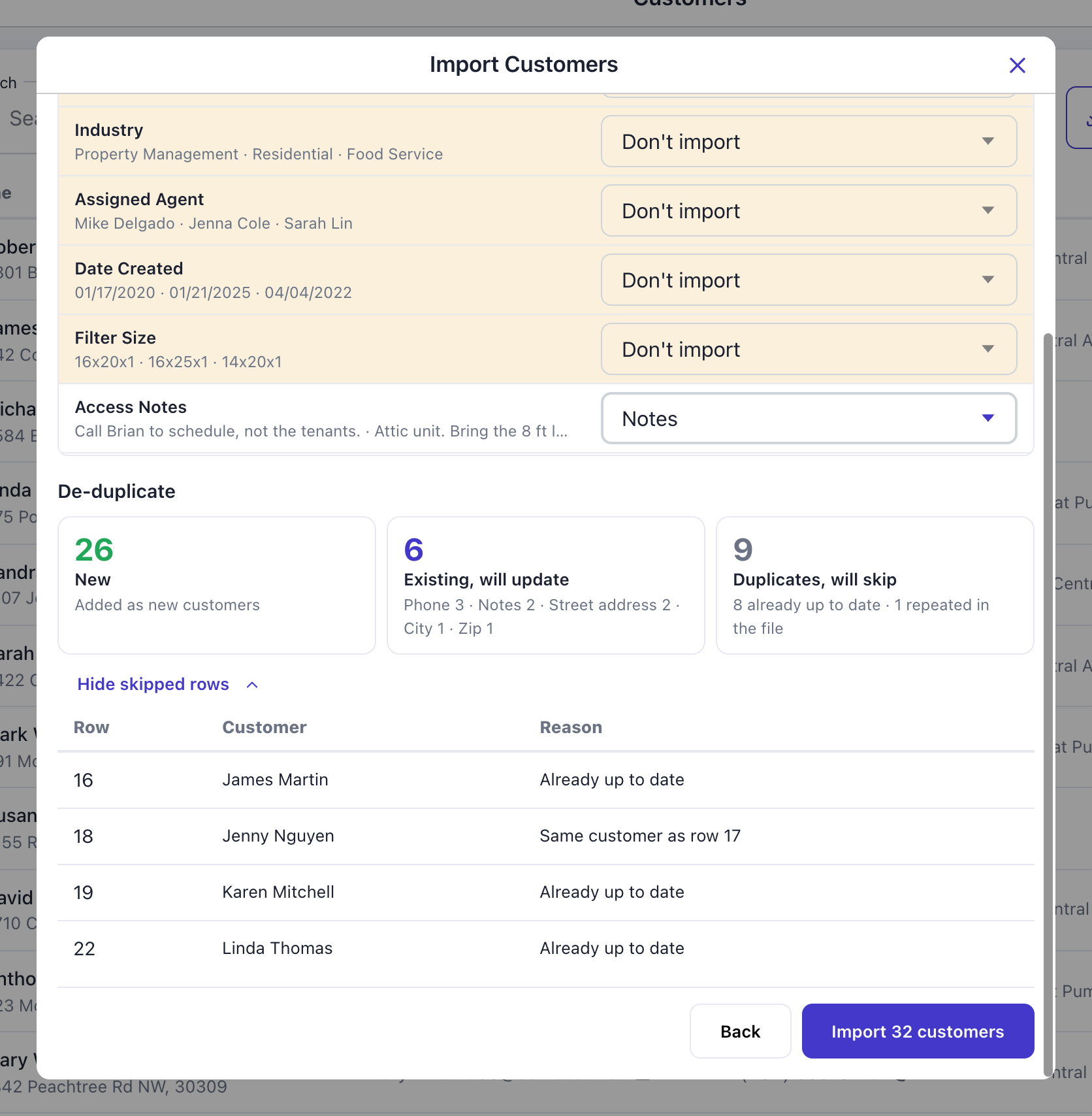
- Duplicates, will skip is the rows that would change nothing, plus the rows that repeat a customer from higher up in the same file. 9 in my file: 8 already up to date, 1 repeated in the file.
Matching goes by email first, then phone. An empty cell in the file never erases a value you already have in Deepsel.
This report lists each customer once, with the primary contact and the primary service location. My one repeated row was a customer somebody had entered twice with the same phone number, it's skipped with the reason "Same customer as row 17".
Click Show skipped rows to see each skipped row with its row number in the file and the reason.
Step 8: Click Import
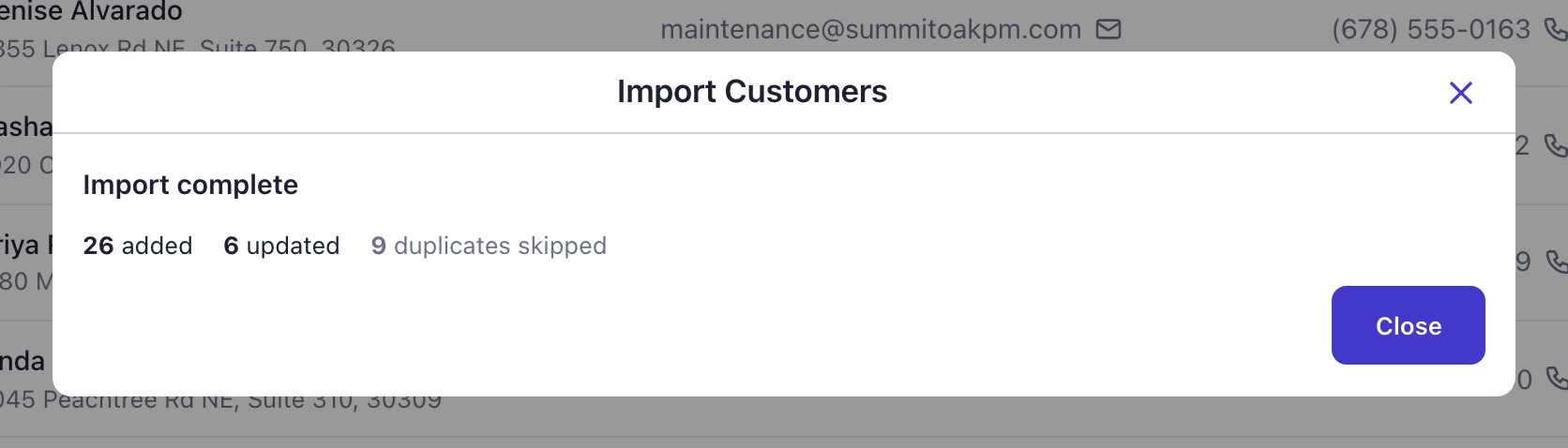
The button says how many customers it's about to write, new plus updated: Import 32 customers. Click it. The result repeats the numbers from the review: 26 added, 6 updated, 9 duplicates skipped.
Step 9: Check the result
Click Close. The list reloads with the newest customers on top and a green confirmation.
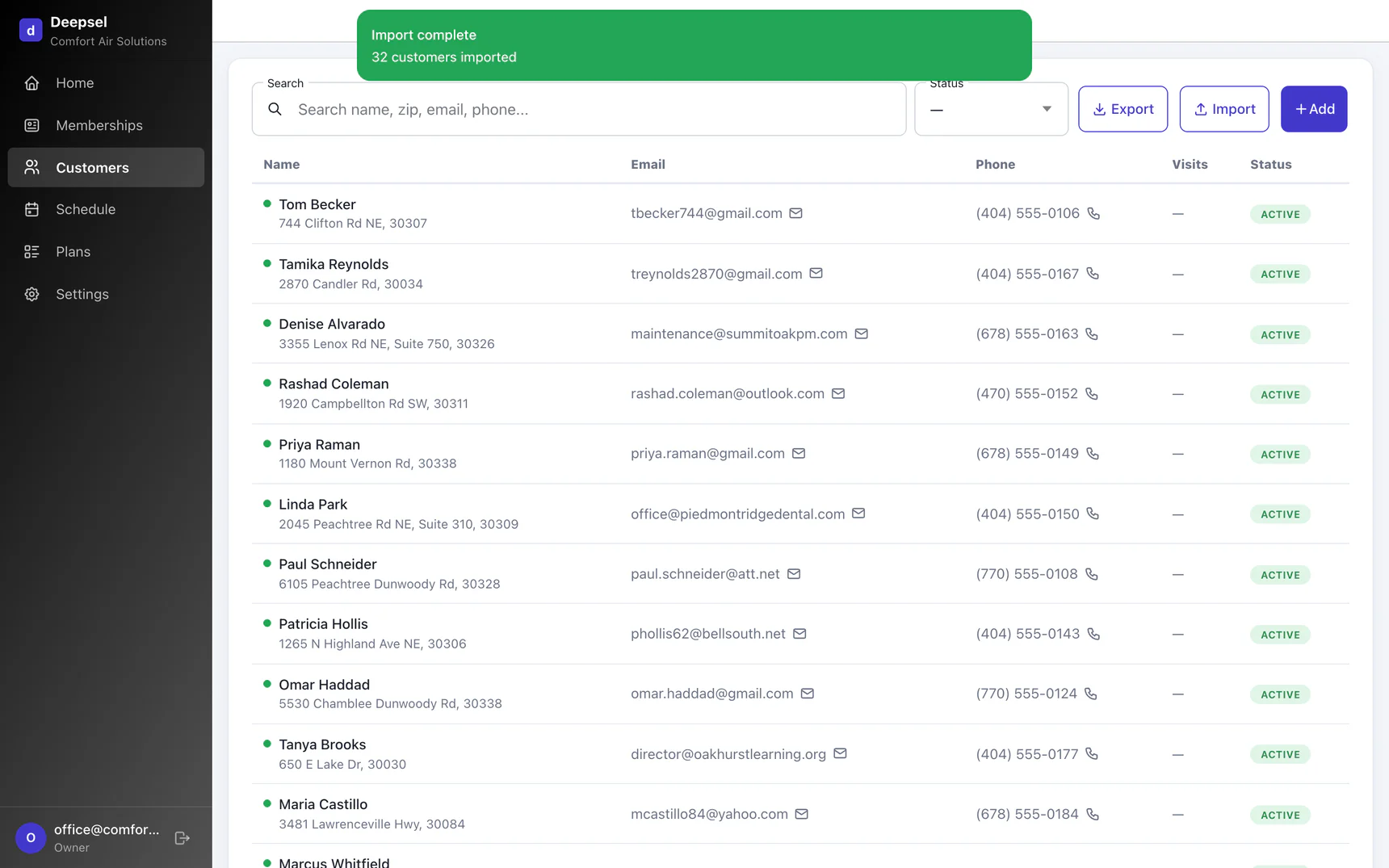
Open one to check it. I opened Linda Park, the office manager at Piedmont Ridge Dental. The note came from the Access Notes custom field I matched in step 6, and Address 2 (Suite 310) is joined onto the street line. A company is listed under its contact person when the file has one, and the company name is saved on the record (click Edit to see it).
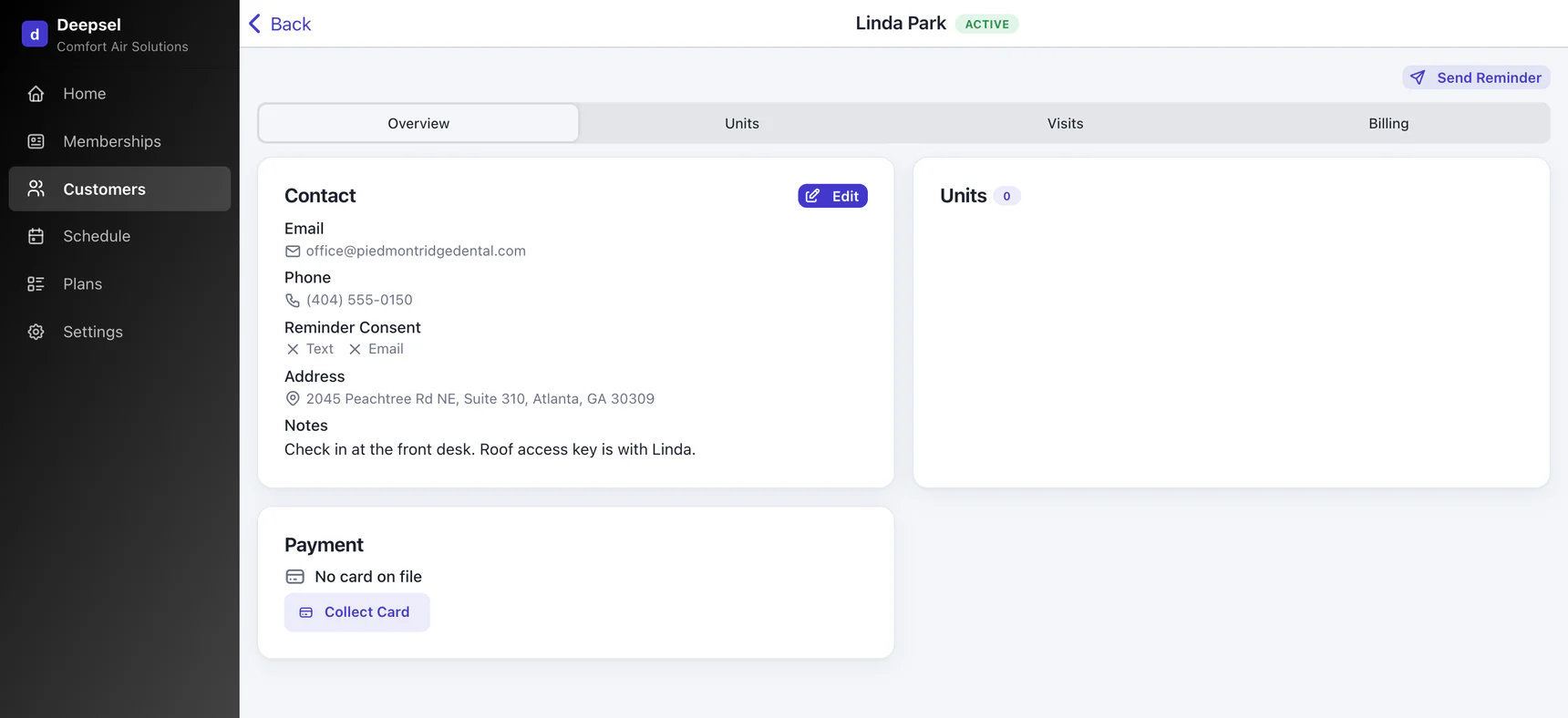
Every imported customer comes in as Active, with no units and no membership, and with reminder consent switched off for text and email.
After the import
The import brings over who your customers are. The agreements are the next job: for each member add the equipment, attach the plan, and put a card on file if that's how you bill. Service Fusion service agreements, explained covers what the agreement record in Service Fusion tracks and what it leaves to a spreadsheet.
Run the import again whenever the list in Service Fusion has moved on. Customers already in Deepsel are matched and either updated or skipped, the new ones are added.
Frequently asked questions
Will importing the same file twice create duplicates?
No. I ran one of these files a second time right after importing it and got 0 added and 0 updated, every row was skipped as already up to date. Rows are matched to the customers you have by email first, then by phone.
Do I need to convert the Excel file to CSV?
No. Deepsel reads .xlsx files directly. The older .xls format is the one it can't read, and Service Fusion doesn't produce that.
Should I import the Customer Service Locations report too?
No. That report has no phone or email column, so Deepsel has nothing to match its rows to the customers you already imported. I tried it with a 19-row sample and all 19 came up as new customers. Deepsel keeps one address per customer, the primary service location from the Customer List.
Where are my customer notes?
Service Fusion's report guide lists no notes column for the Customer List, internal or public. If you keep notes in a custom field, that field is in the file as its own column and you can match it to Notes in the review, the way step 6 shows.
Do inactive customers come across?
Only if you leave Include Inactive Customers ticked when you generate the report. They then come in as ordinary active customers, because Deepsel doesn't read the Is Active column. Untick the box if you want them left out.
My export doesn't look like your screenshots. What do I do?
Upload it anyway. If the layout isn't recognized, Deepsel matches columns by their names and you can set the rest by hand in the review. Then email me the file at tim@usedeepsel.com, I built this layout from Service Fusion's documentation and a real export is what I need to get it exact.
Sources
- Service Fusion help center, "Custom Fields" - "These custom fields are included in the Customer list report." servicefusion.zendesk.com, retrieved September 28, 2026.
- Service Fusion help center, "Comprehensive Reports Dashboard Guide" (edited December 13, 2023) and the report guide sheet it links to, which lists the 28 columns of the Customer List report. servicefusion.zendesk.com, retrieved September 28, 2026.
- Service Fusion help center, "Creating a Customer List Report" (edited June 9, 2026) - "Navigate to Reports > Reports Dashboard"; "Scroll to the bottom left and click Customer List > Custom"; "choose the type of report (HTML or Excel)"; "You must select at least three columns to generate the report." servicefusion.zendesk.com, retrieved September 28, 2026.