How to import Jobber customers into Deepsel
- I ran the export in a live Jobber account on September 27 and 28, 2026, and checked the steps against Jobber's help center (updated March 30, 2026).
- The customers in the screenshots are made up. The file has the same 37 columns, in the same order, as the export Jobber emailed me.
- Deepsel is my own product.
To import Jobber customers into Deepsel, export your client list from Jobber as a CSV (Clients, More Actions, Export Clients), then upload that file in Deepsel under Customers, Import. Deepsel already knows Jobber's column names, so names, phones, emails and service addresses get matched for you. You check the matches, look at how many rows are new and how many are already in your account, and click Import.
Below is every step, with screenshots, using a 46-row export from a made-up Atlanta shop that already had 14 of its customers in Deepsel. The run added 26 customers, updated 6 and skipped 14 rows as duplicates.
14-day free trial. No credit card required.What comes across from Jobber, and what stays behind
The import fills ten fields on a customer: first name, last name, company name, email, phone, street address, city, state, zip and notes. Here's which column of the Jobber file feeds each one.
| Column in the file | Lands in Deepsel as | Good to know |
|---|---|---|
| First Name, Last Name | First name, Last name | |
| Company Name | Company name | |
| Display Name | First name and Last name | Only used when First Name and Last Name are both empty |
| Main, Mobile, Home and Work Phone #s | Phone | One phone per customer: the first number found, looking in that order |
| E-mails | Jobber puts every address in one cell, the first one is kept | |
| Service Street 1 and 2, City, State, Zip code | Street address, City, State, Zip | Street 2 is joined onto the street line: 3150 Lenox Rd NE, Apt 1408 |
| Billing Street 1 and 2, City, State, Zip code | Street address, City, State, Zip | Only used when the row has no service address |
| J-ID | Not stored | Used to spot one client spread over several rows |
| Created Date, Is Company?, Title, Tags, custom fields (CFT[...]), Fax and Other phones, Service Property Name, the two country columns, Text Message Enabled Phone #, the four Receives automatic... columns, Archived, Lead Source | Not imported | These are the yellow rows in the review |
Three things never make it into Jobber's CSV, so they can't come across: client notes (they're only in the vCard export), additional contacts, and whether a client is a lead or active.
Step 1: Export your clients from Jobber
- In Jobber, open Clients from the side menu.
- Click More Actions in the top right, then Export Clients.
- A pop-up opens. Leave the tags alone to get your whole list, or click a tag to export only the clients carrying it.
- Choose CSV as the format. vCard is the one selected when the pop-up opens, and Deepsel can't read a vCard.
- Click Export. Jobber emails the file to the address you're signed in with.
Mine arrived in about 5 seconds, from noreply@txn.getjobber.com, as an attachment named Jobber Clients 1 of 1.csv. Save the attachment to your computer.
A few things that trip people up:
- Only admin users can export clients, and Jobber says client exporting is available on select plans.1
- One file holds up to 1,500 rows. With more than 1,499 clients Jobber attaches several files to the same email.1 Import them one after another.
- Archived clients are in the export too, see the questions at the bottom.
Step 2: Open Customers in Deepsel and click Import
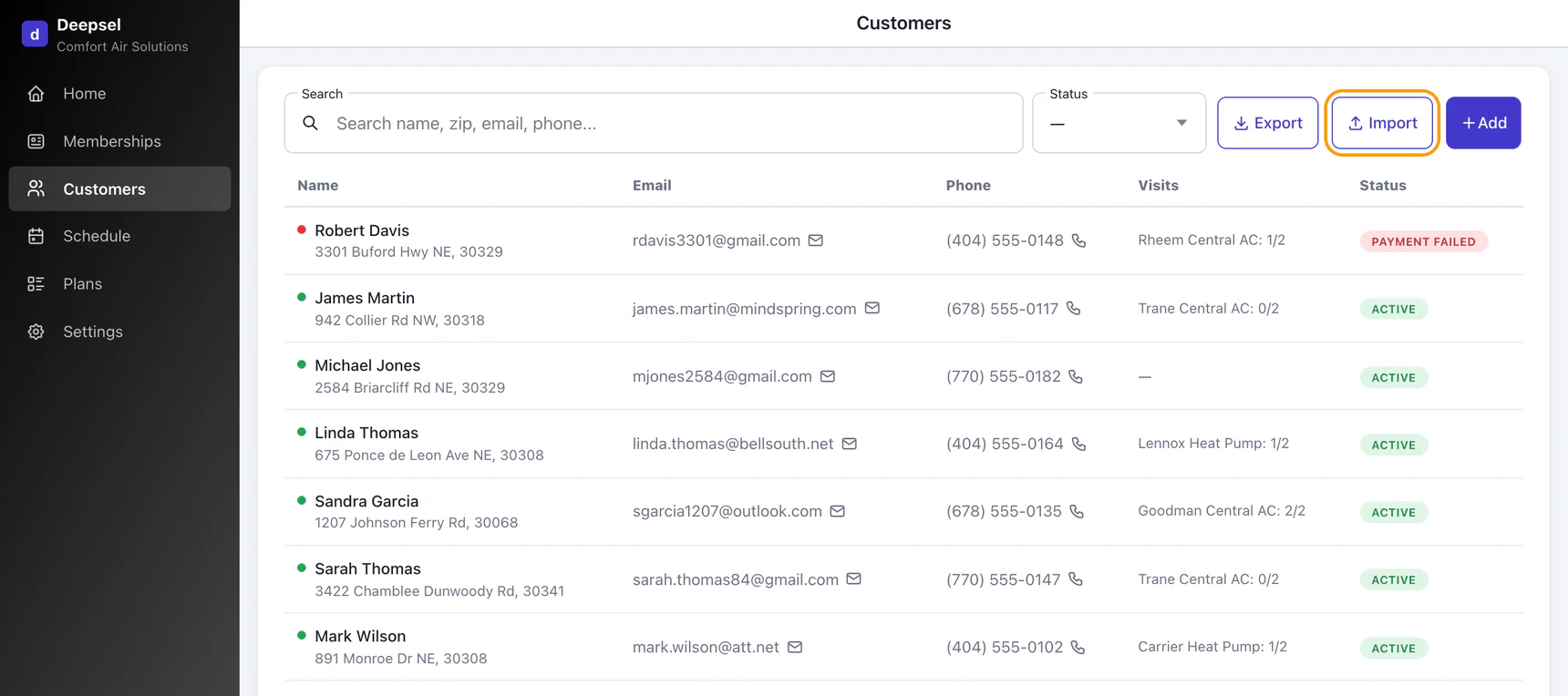
Sign in to Deepsel as the account owner, the Import button only shows for the owner. Open Customers from the side menu and click Import, between Export and Add.
Step 3: Pick Jobber as the source
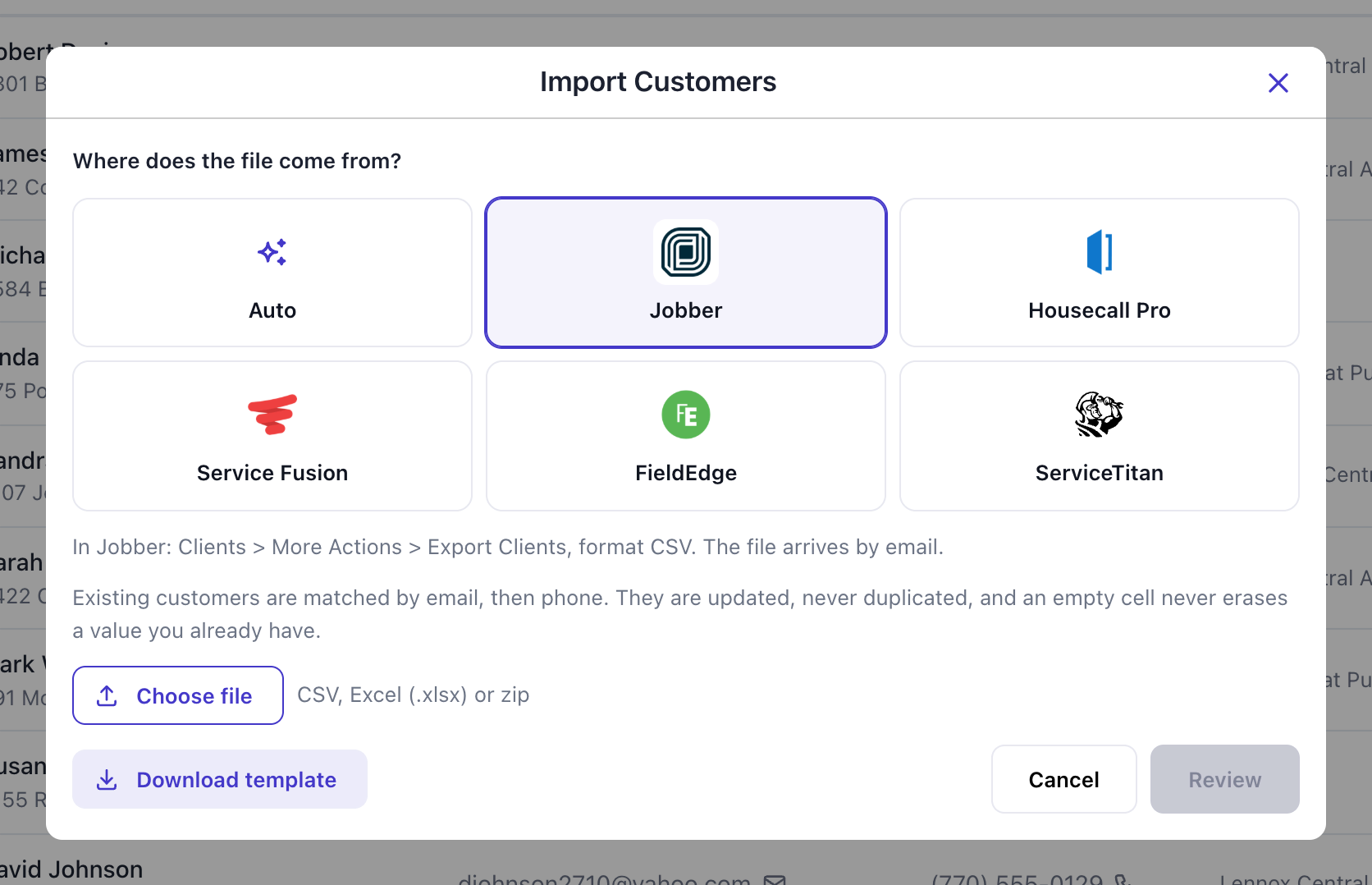
The window opens with Auto selected. Auto reads the column names and works out where the file came from, so it would get a Jobber file right as well. I click Jobber anyway: the line under the buttons then says where the export lives in Jobber, handy if you haven't run it yet.
Step 4: Choose the file
Click Choose file and pick the CSV you saved from Jobber's email. The file name shows up next to the button and Review turns on. Deepsel takes CSV, Excel (.xlsx) and zip files up to 20 MB.
Step 5: Review the column matches
Click Review. Deepsel reads the file and shows what it plans to do with it. Nothing is saved at this point, the review is a dry run.
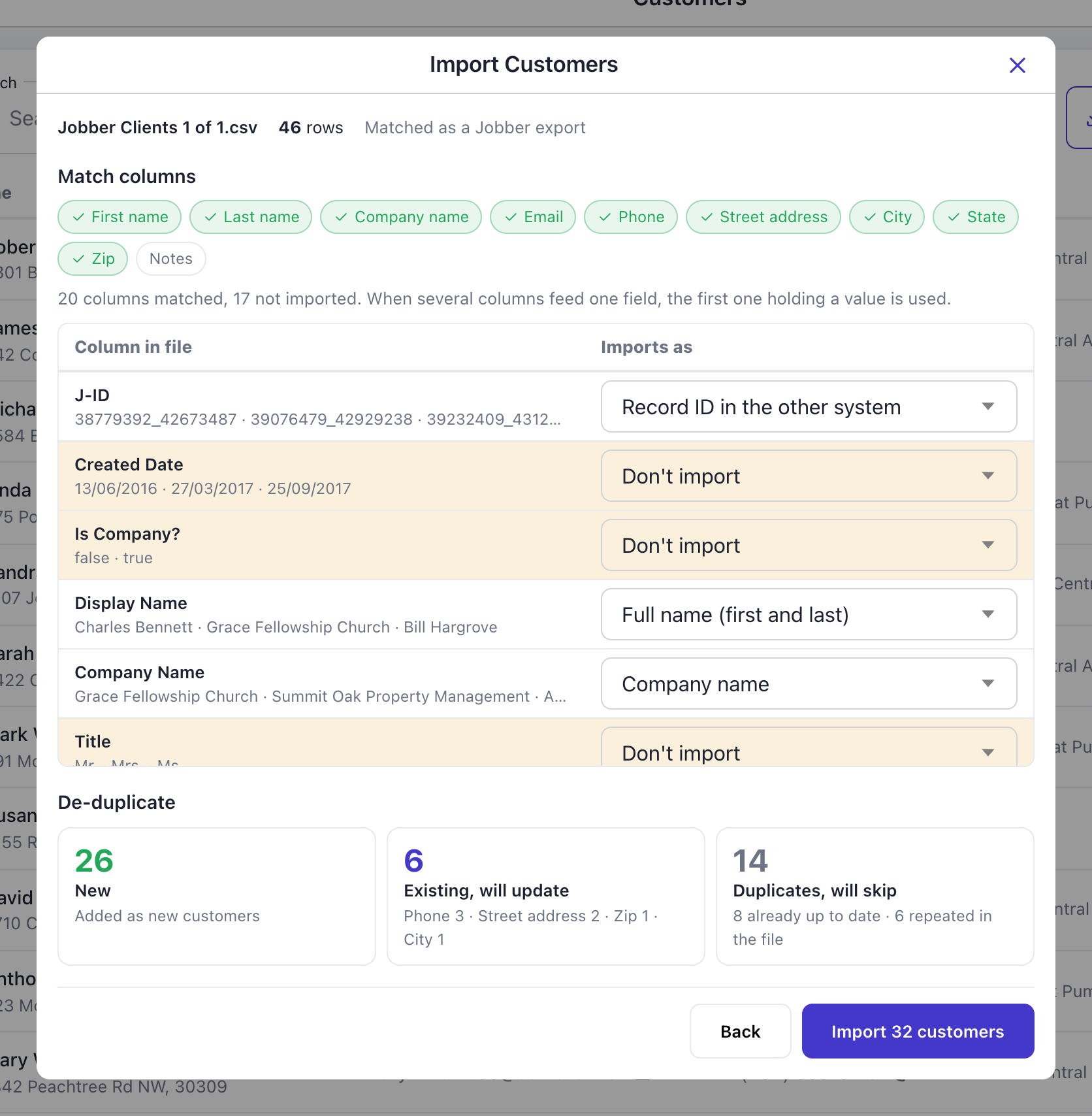
The top line has the file name, the row count and "Matched as a Jobber export". Under it are the ten customer fields as chips, green when a column in the file feeds that field. Nine of the ten are green here. Notes stays grey because Jobber's CSV has no notes column.
The table lists every column in your file with a few real values from it, and on the right what it imports as. White rows get imported. Yellow rows are left out. In my file 20 columns are matched and 17 are left out. The 17 are things Deepsel has no customer field for: tags, lead source, the Filter Size custom field, the reminder settings, fax numbers.
Jobber has a phone column per type and all four feed the one Phone field. Deepsel takes the first number it finds, looking at Main, then Mobile, then Home, then Work. The service address wins over the billing address the same way.
Step 6: Change a match if you need to
Every dropdown can be changed. Open one, pick a field, and the counts at the bottom are worked out again. Pick Don't import to leave a column out.
In the screenshot I opened the dropdown on CFT[Filter Size], a custom field from Jobber. I left it on Don't import, filter sizes belong on the unit in Deepsel and you add them with the equipment.
![Review screen with the dropdown open on the CFT[Filter Size] column, listing Don't import, First name, Last name, Full name, Company name and the other fields](/assets/import-customers/jobber-5-change-match.webp)
Two checks run while you do this. A customer needs a name or an address, so if no column feeds either one the chip turns red and the Import button stays off. And if no column feeds email or phone you get an amber warning: Deepsel then has no way to recognize the customers you already have, and every row would be added as new.
Step 7: Check the de-duplicate counts
Under the table is De-duplicate, with three numbers.
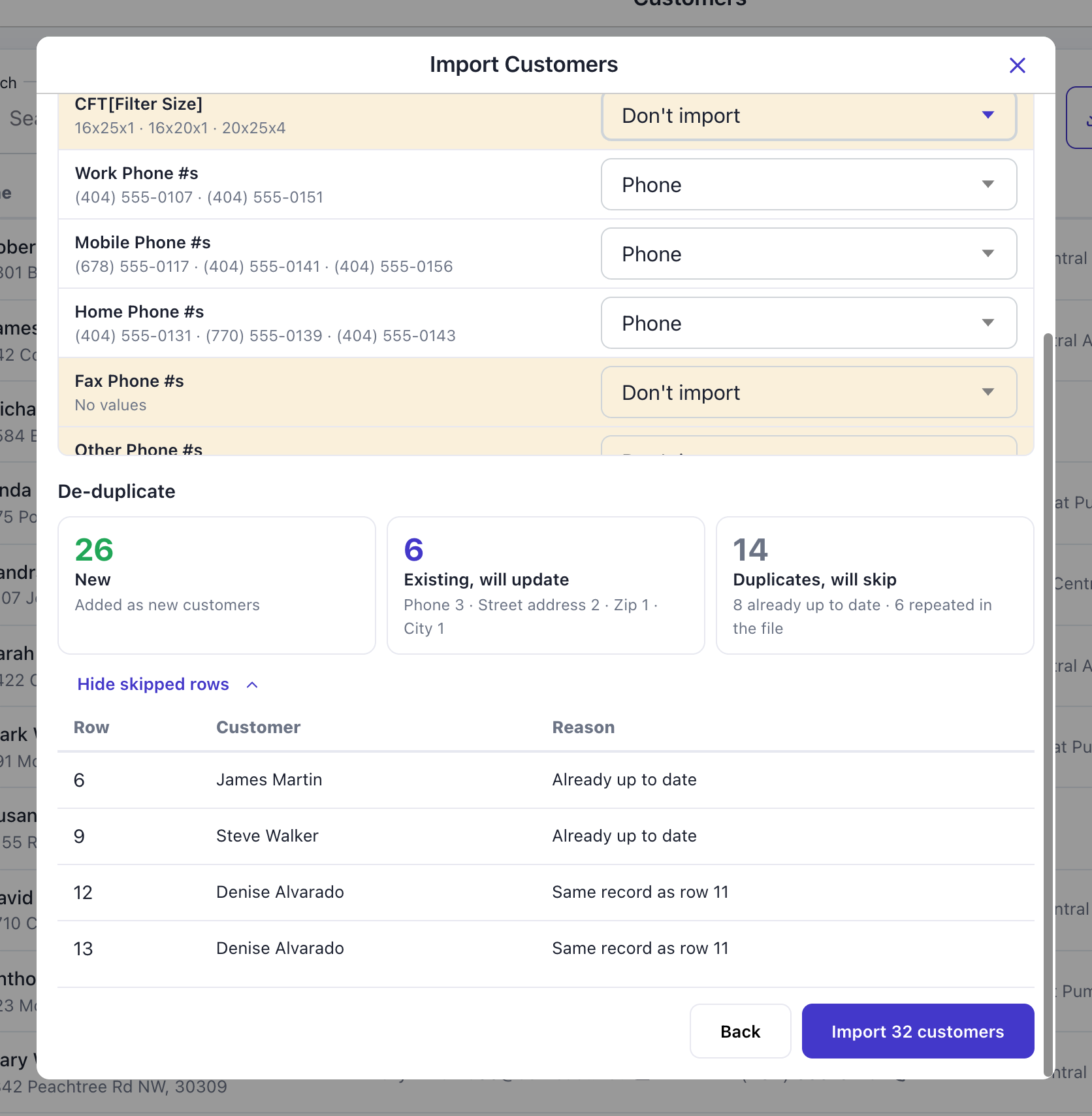
- New is the rows that match nobody in your account. 26 in my file.
- Existing, will update is the rows that match a customer you already have and carry something different. 6 in my file, and the line under the number says what changes: Phone 3, Street address 2, Zip 1, City 1.
- Duplicates, will skip is the rows that would change nothing, plus the rows that repeat a customer from higher up in the same file. 14 in my file: 8 already up to date, 6 repeated in the file.
Matching goes by email first, then phone. An empty cell in the file never erases a value you already have in Deepsel.
Jobber writes one row per service property, so a client with three properties sits on three rows. Deepsel keeps the first one and skips the rest with the reason "Same record as row 15". That explains 5 of my 6 repeated rows: a landlord with three rentals, a property manager with three buildings, and a homeowner with a rental condo. The sixth was a client somebody had typed into Jobber twice with the same mobile number.
Click Show skipped rows to see each skipped row with its row number in the file and the reason.
Step 8: Click Import
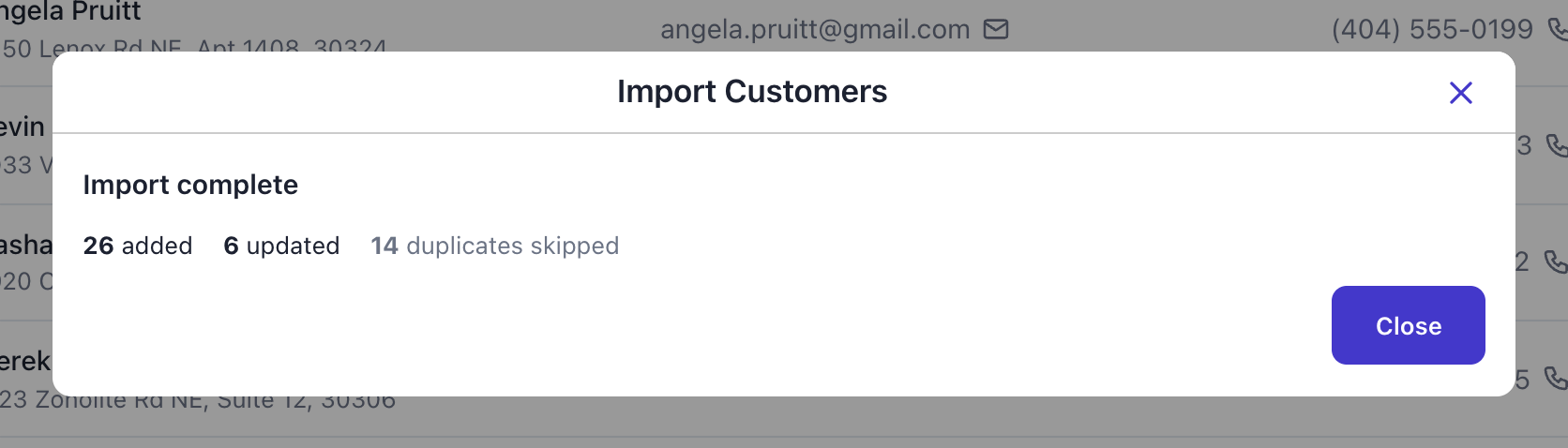
The button says how many customers it's about to write, new plus updated: Import 32 customers. Click it. The result repeats the numbers from the review: 26 added, 6 updated, 14 duplicates skipped.
Step 9: Check the result
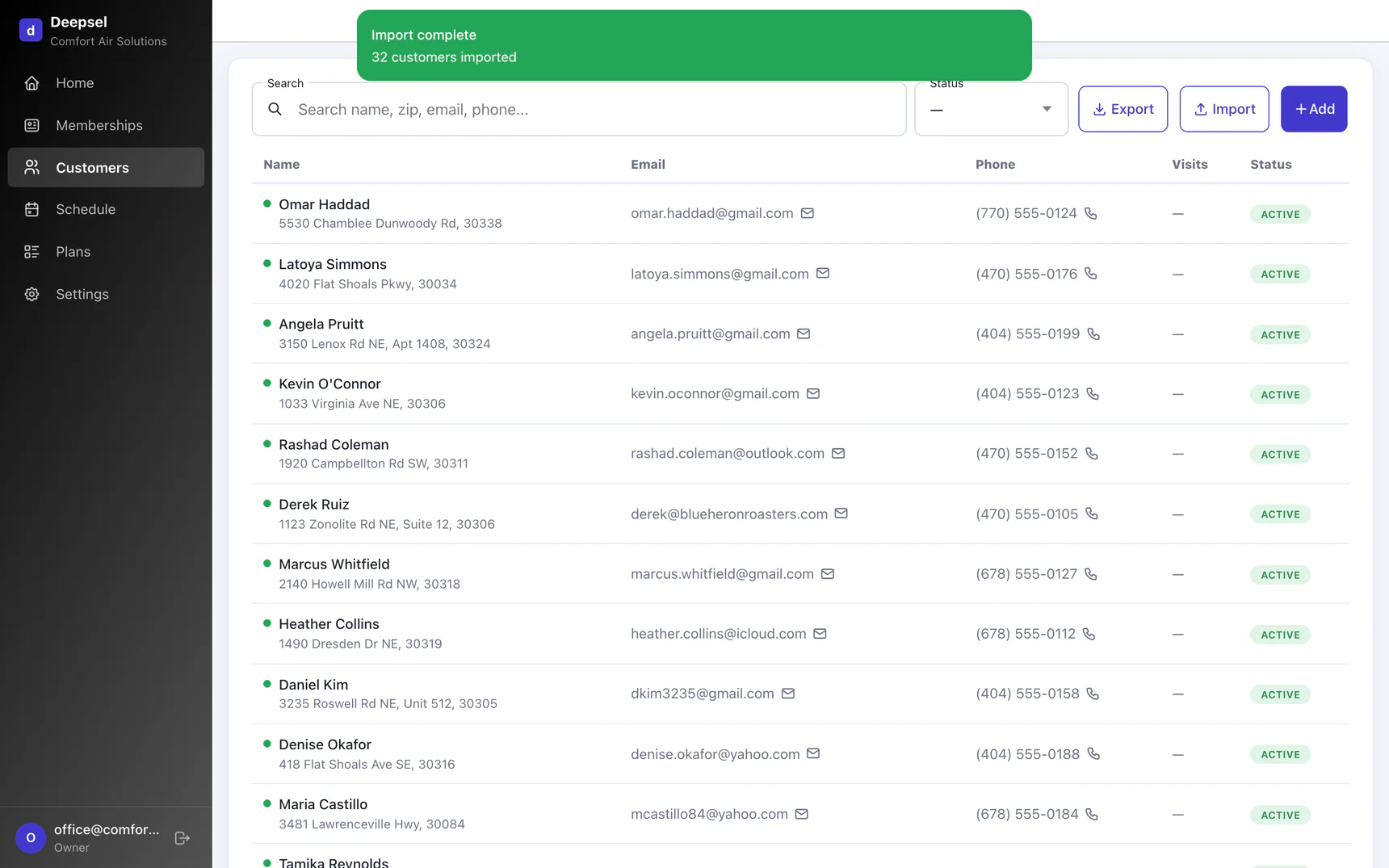
Click Close. The list reloads with the newest customers on top and a green confirmation.
Open one to check it. I opened Linda Park, the office manager at Piedmont Ridge Dental. A company is listed under its contact person when the file has one, and the company name is saved on the record (click Edit to see it). Street 2 from Jobber, Suite 310, is joined onto the street line.
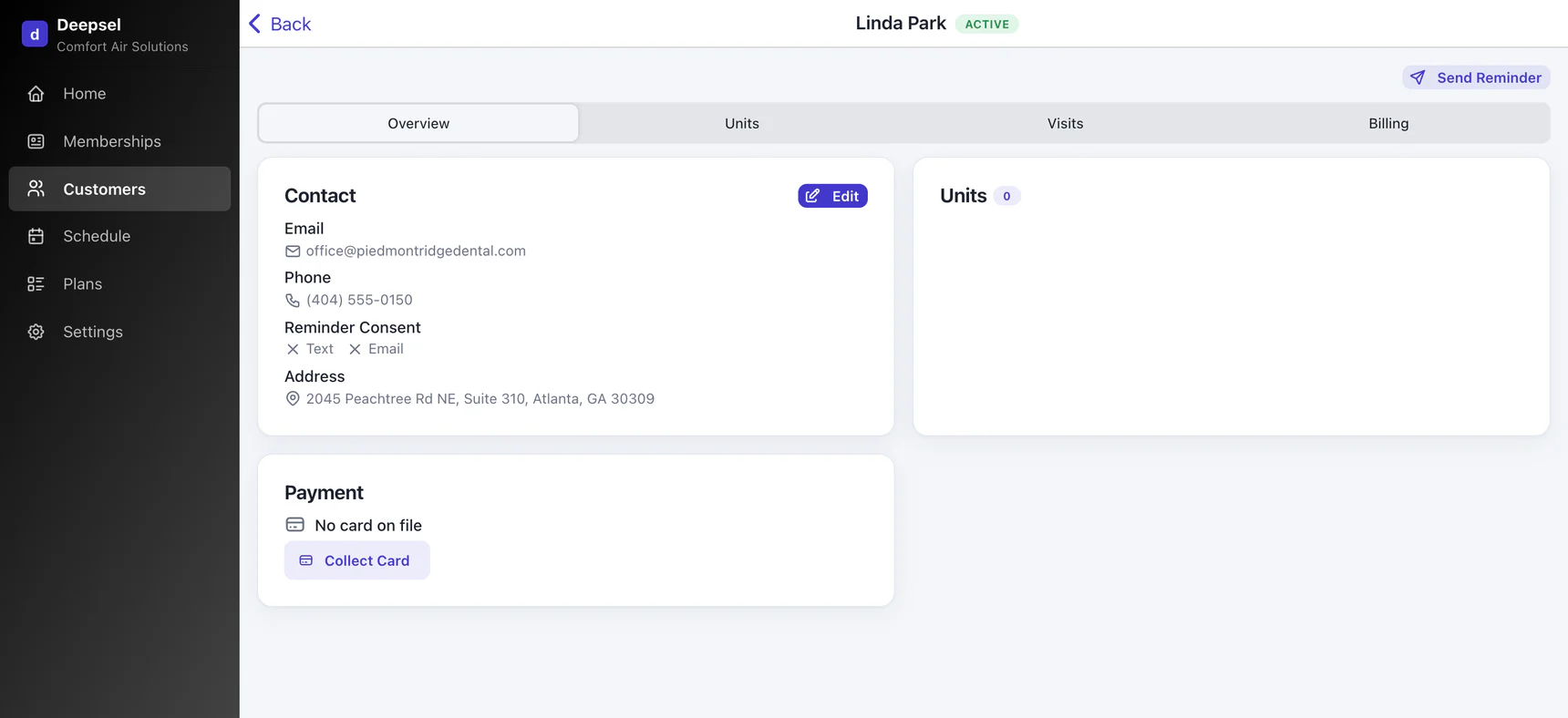
Every imported customer comes in as Active, with no units and no membership, and with reminder consent switched off for text and email.
After the import
The import brings over who your customers are. The agreements are the next job: for each member add the equipment, attach the plan, and put a card on file if that's how you bill. If you've been running plans in Jobber with recurring jobs and tags, how to run maintenance plans in Jobber covers what that setup tracks and what it leaves to a spreadsheet.
Run the import again whenever the list in Jobber has moved on. Customers already in Deepsel are matched and either updated or skipped, the new ones are added.
Frequently asked questions
Will importing the same file twice create duplicates?
No. I ran one of these files a second time right after importing it and got 0 added and 0 updated, every row was skipped as already up to date. Rows are matched to the customers you have by email first, then by phone.
Jobber sent me several files. What now?
Jobber splits the export once you pass 1,499 clients and attaches all the files to one email. Import them one after another. Each run adds the customers from that file and skips anyone already brought in by an earlier one.
What happens to a client with several properties?
Deepsel keeps one address per customer. Jobber lists the client once per property, Deepsel takes the address from the first of those rows and skips the others as repeats of the same record. If the first row is the wrong property, change the address on the customer after the import.
Do archived clients and leads come across?
Yes, both, as ordinary active customers. Jobber includes archived clients in the export with Archived set to true, and the CSV has no column that marks a lead. Deepsel doesn't read the Archived column. To keep them out, delete those rows from the CSV before you upload it, or delete the customers in Deepsel afterward.
Can I upload the vCard export?
No. Deepsel reads CSV, Excel (.xlsx) and zip files. I tried the vCard: no column matched and the Import button stayed off. Run the export again and choose CSV.
Do client notes come across?
No. Jobber's CSV has no notes column, the notes are only in the vCard export. Copy the ones that matter onto the customer in Deepsel by hand.
Does Deepsel stay in sync with Jobber after the import?
The import is a one-time copy, run it again whenever you want to catch up. Ongoing customer and schedule sync with Jobber is part of the Pro plan, which is marked coming soon on the pricing page.
Sources
- Jobber Help Center, "Export Client Information" (updated March 30, 2026) - "Only admin users are able to import and export clients"; "Client exporting is available on select plans"; "the export can handle up to 1500 rows in your CSV file at a time. If you have more than 1499 clients to export, you will receive multiple files attached in your export email." help.getjobber.com, retrieved September 28, 2026.